
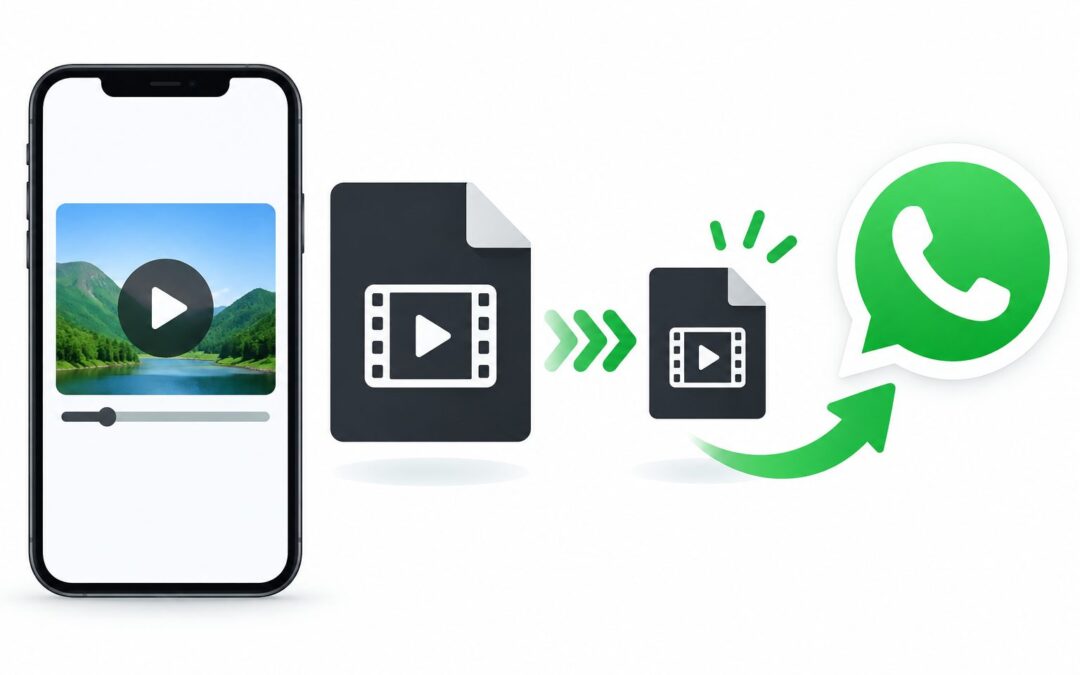
Learning how to reduce video size to send via whatsapp can save you a lot of frustration when a large clip refuses to upload or gets stuck during sending. Most phones now record in high definition or 4K, which creates beautiful videos but also huge files that WhatsApp cannot handle easily. In this guide, you will learn simple and practical ways to compress, trim, and prepare your videos without losing too much quality.
WhatsApp automatically compresses videos sent as regular media, but it still has strict limits on file size and duration that can cause errors. If your video is too large, it may fail to send, take a very long time to upload, or look blurry after WhatsApp compresses it heavily. Understanding these limits helps you choose the right method to make your video smaller before you hit the send button.
The good news is that you do not need expensive software or technical skills to make a video WhatsApp-friendly. You can use built-in phone features, free apps, screen recording settings, and smart sharing tricks to quickly lower the file size. Even small changes like lowering resolution from 4K to 720p or trimming unwanted parts can cut the size by more than half.
In the following sections, you will discover why videos become too large, the best ways to compress them on Android and iPhone, phone settings that help, and how to fix common sending problems. I will also share practical tips to keep quality clear, mistakes to avoid, and answers to frequent questions so you can share videos smoothly every time.
WhatsApp treats videos sent in chat differently from videos sent as documents, and this affects both size limits and quality. When you send a video as a regular chat video, WhatsApp compresses it aggressively to make it load faster, usually keeping it under 16 megabytes for smooth playback. When you send it as a document, it preserves original quality but the limit is much higher, up to 2 gigabytes on updated versions.
Video file size mainly depends on resolution, frame rate, length, and format, not just how long the video is. A one-minute 4K video at 60 frames per second can be over 400 megabytes, while the same clip in 720p at 30 frames per second might be under 60 megabytes. Audio quality, stabilization, and high motion scenes also add extra data that increases the final size quickly.
Most sending failures happen because the video exceeds the limit for the chosen sending method or the internet connection is too slow to upload a large file. You might see messages like video is too large, unable to send, or the upload circle stuck at 90 percent for a long time. In other cases, the video sends but looks pixelated because WhatsApp applied heavy compression to fit its own size rules.
Reducing size before sending gives you much more control over quality than letting WhatsApp compress it automatically. When you compress it yourself, you can choose the resolution, trim the length, and pick a balanced format like MP4 with H.264 coding. This way your friends and family see a clear video that still uploads fast and does not consume too much mobile data.
You do not need to use the same method for every situation, because short personal clips and long work videos have different needs. A short birthday clip can be trimmed and sent directly in chat, while a ten-minute tutorial may be better compressed and sent as a document or split into parts. The next sections will walk you through the most reliable methods so you can pick the right one in seconds.
Why WhatsApp Reduces Video Quality?
Automatic Compression For Faster Sharing
WhatsApp automatically compresses chat videos to reduce mobile data usage and help them play quickly even on slow networks. When you select a video from your gallery, it lowers the resolution and bitrate before uploading, which is why a sharp 1080p recording may look softer after sending. Compressing the video yourself first gives WhatsApp less work to do and usually preserves more detail in faces, text, and important subjects.
File Size Limits For Chat Videos
Traditional WhatsApp chat videos were limited to around 16 megabytes, which equals roughly 90 seconds to 3 minutes depending on quality. Even with newer updates that allow larger files, long high-resolution recordings still exceed the comfortable range for instant messaging. By reducing resolution to 720p or trimming the start and end, you can easily bring most personal videos under this limit without noticeable quality loss.
Document Mode Preserves Original Detail
Sending a video as a document bypasses the aggressive chat compression and keeps the original sharpness, which is ideal for work presentations or client videos. However, document files take longer to upload and download because they are larger, and some phones struggle to preview them. If you use document mode, it is still smart to compress slightly so the file uploads reliably while keeping text and details clearly readable.
Resolution Has The Biggest Impact
Resolution is the number of pixels in your video, and it is the single biggest factor that controls file size. Changing from 4K to 1080p can cut size by 60 percent, and going from 1080p to 720p can cut it by another 40 to 50 percent. For WhatsApp viewing on a small phone screen, 720p usually looks perfectly clear while keeping the file small enough to send quickly.
Length And Frame Rate Add Hidden Size
Longer videos naturally create larger files, but frame rate also plays a hidden role that many people overlook. A video recorded at 60 frames per second has twice as many images per second as a 30 frames per second video, which nearly doubles the size. If you record everyday moments for WhatsApp, using 30 frames per second is smooth enough and will make compression and uploading much faster.
Video Format Affects Compatibility
The MP4 format with H.264 video coding is the most compatible and efficient choice for WhatsApp on both Android and iPhone. Some phones save videos in HEVC or MOV format, which can be higher quality but larger and sometimes harder to play on older devices. Converting to MP4 before sending ensures faster uploads, fewer errors, and smooth playback for almost everyone who receives your video.
Internet Speed Changes Sending Success
Even a properly sized video can fail if your mobile data or Wi-Fi connection is unstable during upload. Large files are more likely to pause, restart, or time out on weak signals, especially in crowded areas or moving vehicles. Reducing the video to under 25 megabytes for chat or under 100 megabytes for documents greatly improves success rates and saves both time and mobile data.
Best Ways To Compress Videos Fast
1. Trim unwanted start and end clips using your phone gallery editor, because removing just 20 seconds of shaky footage can save 30 to 80 megabytes and make the message clearer and more engaging for the viewer.
2. Lower the resolution to 720p before sending, since this single change keeps faces and text sharp on phones while cutting file size dramatically compared to full HD or 4K originals.
3. Use your phone built-in save as smaller size option when sharing, because both Android and iPhone often suggest compressed versions automatically when a video is too large for messaging apps.
4. Convert the video to MP4 with standard compression if it was recorded in MOV or 4K HEVC, as this improves WhatsApp compatibility and usually reduces size without visible quality loss on small screens.
5. Split very long videos into two or three shorter parts, because short clips upload faster, are less likely to fail, and are actually easier for friends, family, or customers to watch completely.
Simple Phone Settings That Help
- Camera Resolution: Set your camera to record in 1080p at 30 frames per second for everyday videos you plan to share on WhatsApp. This prevents huge 4K files and saves storage while still looking sharp and professional on mobile screens.
- Gallery Editor: Use the trim, mute, and resolution options in Google Photos or iPhone Photos before sharing. These free built-in tools let you cut length and lower size in seconds without installing any extra compression app.
- WhatsApp HD Toggle: Use the HD button at the top when selecting a video in WhatsApp if you want better clarity for an important clip. Just remember HD files are larger, so only use it for short videos on good Wi-Fi.
- Document Sending: Choose document instead of gallery video when quality matters more than speed, such as for work demos or text-heavy screen recordings. Compress the file lightly first so it stays under 100 megabytes for fast delivery.
- Storage Saver: Turn on storage saver or efficiency mode in your camera settings if available. This uses smarter compression while recording and creates much smaller files that are already optimized for messaging and social sharing.
- Wi-Fi Uploads: Always upload larger videos on stable Wi-Fi instead of mobile data when possible. A stable connection prevents failed uploads, preserves quality, and avoids using up your monthly data allowance unnecessarily.
- Cloud Links: Upload very large videos to cloud storage and share access through chat when compression would ruin quality. This is perfect for wedding videos, long tutorials, or original footage that must stay in full resolution.
Fix Common Video Sending Problems
Video Too Large To Send Error
This error usually appears when you try to send a long 4K video as a regular chat message. The fastest fix is to trim the video to the essential part, lower resolution to 720p, and try again. If it still fails, send it as a document or split it into two shorter clips that each fall comfortably within the size limit.
Upload Stuck Or Very Slow
A stuck upload circle often means the file is too large for your current internet speed or the connection keeps dropping. Switch to strong Wi-Fi, pause other downloads, and compress the video below 25 megabytes for chat sending. Restarting WhatsApp and keeping the screen on during upload can also prevent the process from pausing in the background.
Blurry Video After Sending
Blurry results happen when WhatsApp applies heavy compression to a large high-resolution file. To keep better clarity, compress the video yourself to a balanced 720p MP4 before sending instead of letting WhatsApp shrink a huge file automatically. For important details like documents or product demos, send as a document file to preserve sharp text and edges.
No Sound In Received Video
Missing sound is often caused by unsupported audio formats or muted trimming during editing. Make sure the video has AAC audio, which WhatsApp supports widely, and check that you did not accidentally mute it in the gallery editor. Re-exporting the video as MP4 with standard audio settings usually restores sound for the receiver without increasing size much.
Video Format Not Supported
Some phones record in formats that older devices cannot play smoothly, leading to black screens or playback errors. Converting the clip to MP4 with H.264 video and AAC audio solves most compatibility problems. Most free video converter apps can do this in under a minute while also giving you an option to choose a smaller file size.
Status Video Gets Cut Off
WhatsApp Status limits videos to short segments, so long clips get automatically cut into smaller pieces. To control the result, trim your video to the best 60 to 90 seconds and compress it to 720p before uploading. This keeps the story clear, maintains better visual quality, and avoids awkward automatic cuts in the middle of important moments.
Large File Uses Too Much Data
Sending full-resolution videos repeatedly can quickly consume mobile data for both you and the receiver. Reduce resolution, shorten length, and avoid the HD toggle unless truly needed to keep data usage low. If you must share original quality, upload once to cloud storage on Wi-Fi and let others download only if they need the full version.
Reducing video size for WhatsApp is mostly about making smart small adjustments before you press send. Trimming length, lowering resolution to 720p, and using MP4 format will solve most size and quality problems without extra effort.
Try one or two methods from this guide on your next video and notice how much faster it uploads. Once you find a workflow that works for your phone, sharing clear and compact videos will become a quick and stress-free habit.
Remember that the best video is not always the largest one, but the one that reaches the other person clearly and quickly. Keep your clips short, focused, and properly compressed, and your WhatsApp sharing experience will stay smooth every time.
FAQs About WhatsApp Video Size
What Is The Maximum Video Size For WhatsApp?
For regular chat videos, WhatsApp works best under 16 megabytes, though newer versions allow up to 2 gigabytes when sent as documents. For fast and reliable sending, try to keep chat videos under 25 megabytes and document videos under 100 megabytes whenever possible.
How Can I Reduce Video Size Without Losing Quality?
Lower resolution to 720p, trim unnecessary parts, and export as MP4 with H.264 compression to reduce size while keeping good clarity. Avoid compressing the same file multiple times, as repeated compression causes more blur and pixelation than a single careful compression.
Why Does WhatsApp Make My Video Blurry?
WhatsApp compresses large videos automatically to save data and speed up playback, which softens details especially in 4K originals. Compressing the video yourself to a balanced size before sending gives you better control and usually results in a clearer final video for the viewer.
Should I Send Video As Document For Better Quality?
Yes, sending as a document preserves original quality because WhatsApp does not apply chat compression. This is ideal for work videos, tutorials, or clips with small text. Just compress lightly first so the file uploads faster and does not use excessive data.
What Is The Best Resolution For WhatsApp Videos?
720p at 30 frames per second is the best balance of clarity and small file size for most WhatsApp sharing. It looks sharp on phone screens, uploads quickly, and rarely triggers heavy automatic compression. Use 1080p only for short important clips on good Wi-Fi.
How Do I Send A Long Video On WhatsApp?
Compress the video, split it into shorter parts of two to three minutes each, and send them in order with clear labels. For very long videos over ten minutes, upload to cloud storage and share the file as a document or link to preserve quality.